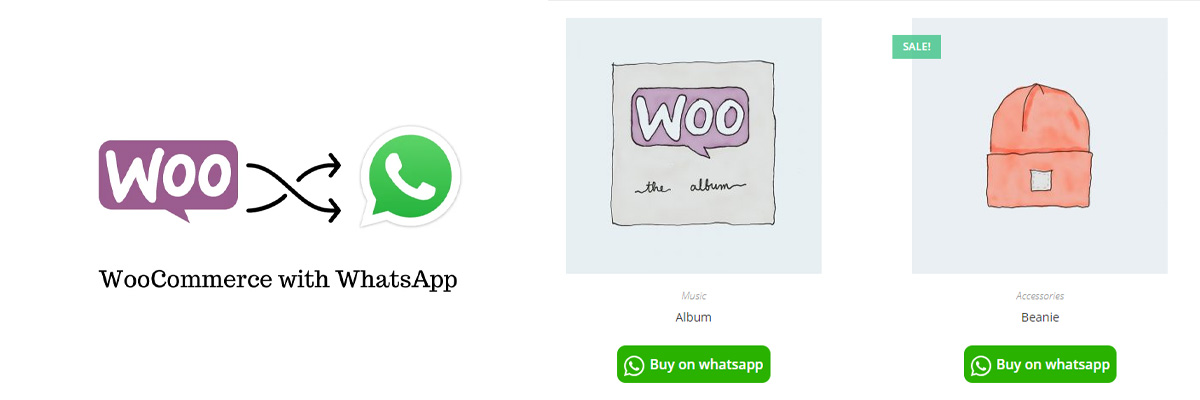
How to Accept WooCommerce Orders via WhatsApp (No Code, Under 10 Minutes)
Step-by-step guide to adding a WhatsApp order button to WooCommerce. Customers fill a checkout form and the complete order lands in your WhatsApp. No code needed, live in under 10 minutes.
Why WhatsApp Ordering Works
WhatsApp has over 2 billion active users worldwide. In markets like Brazil, India, Southeast Asia, the Middle East, and Africa, customers prefer communicating and purchasing through WhatsApp over traditional checkout forms.
Adding a WhatsApp order button to your WooCommerce store can dramatically increase conversion rates because it removes friction. Instead of requiring customers to create an account, fill in shipping details, and complete a payment form, they simply tap a button and send you a message.
ChatCart Pro is the easiest way to accept WhatsApp orders on WooCommerce. The customer fills a checkout form, submits, WhatsApp opens with the full order pre-filled, and a real WooCommerce order is created automatically in the background. Get ChatCart Pro - $29/month →
What You Need
A WordPress site with WooCommerce installed, a WhatsApp or WhatsApp Business account with a phone number, and the ChatCart Pro plugin (available at veloryntech.com/chatcartpro).
Installation Steps
1. Download and Install the Plugin
After purchasing ChatCart Pro, you will receive a ZIP file. Go to WordPress Admin → Plugins → Add New → Upload Plugin, select the ZIP file, and click Install Now. Then activate the plugin.
2. Configure Your WhatsApp Number
Navigate to ChatCart Pro in your WordPress sidebar. In the settings panel, enter your WhatsApp phone number in international format, for example, +5511999999999 for a Brazilian number.
3. Configure the Button
Set the button label and its position, either before or after the Add to Cart button. There is also a separate floating button option you can enable independently.
4. Customize the Greeting and Closing
The order message is generated automatically by the plugin and includes all order details from the checkout form. In the settings you can optionally set a custom greeting line and closing line that appear before and after the order summary.
5. Test It
Open a product page on your store and click the WhatsApp button. You will be taken to the ChatCart Pro checkout form. Fill in your details and submit. WhatsApp will then open with the complete order message ready to send, and a WooCommerce order will be created in the background automatically.
Tips for Managing WhatsApp Orders
Use WhatsApp Business: The Business version gives you access to quick replies, catalog features, and business hours. It also separates your personal and business conversations.
Create order templates: Save common responses as quick replies so you can confirm orders faster.
Set up an auto-response: Use WhatsApp Business API tools or third-party services to send an instant confirmation when an order message arrives.
Track your performance: ChatCart Pro includes a built-in analytics dashboard. Go to ChatCart Pro → Analytics to see click counts per product.
Common Questions
Do customers need to have my number saved? No. The wa.me link opens a chat without requiring the customer to save your number first.
Does it work with variable products? Yes. The pre-filled message automatically includes the selected variation (color, size, etc.).
Can I use this with WhatsApp Business API? Yes, the phone number you enter works with both the standard app and Business accounts.
Adding WhatsApp ordering to your WooCommerce store is one of the highest-ROI changes you can make, especially if your customers are in mobile-first markets. ChatCart Pro makes it a 5-minute setup with no developer required.
See also: 5 Proven Ways to Improve Your WooCommerce Conversion Rate for more high-impact tactics to convert more visitors into buyers. And if you sell to Brazilian customers, see Selling to Brazilian Customers on WooCommerce: CPF, CEP, and Pix Explained to localize your checkout for that market.